Developer Guide
- Acknowledgements
- Introduction
- Setting up, getting started
- Design
- Implementation
- Documentation, logging, testing, configuration, dev-ops
- Appendix: Requirements
-
Appendix: Instructions for manual testing
- Launch and shutdown
- Adding a patient
- Editing a patient
- Deleting a person
- Creating appointments
- Deleting a patient’s past appointment
- Consulting a patient
- View a patient
- Sorting patients by patient type
- Sorting patients by hospital wing
- Sorting patients by appointment date
- Displaying all past appointments of a patient
- Sorting of the past appointments
- Filtering patients by medication
- Filtering patients by name
- Filtering patients by ward number
- Filtering patients by floor number
- Appendix: Effort
Acknowledgements
This project is based on the AddressBook-Level3 project created by the SE-EDU initiative.
Third-party software used in this project:
Introduction
checkUp is a desktop application for medical practitioners to manage their patients’ medical records. In this developer guide, we will describe the architecture and design of the application. This guide is mainly for developers who wish to enhance or create their own version of checkUp. You may refer to the User Guide for instructions on how to use the application.
Technologies
checkUp is written in Java 11 and uses JavaFX to create the GUI. Gradle is used for building and managing the project. Testing is done using JUnit.
Functions
checkUp’s features include creating, viewing and managing patients’ medical records by storing data such as their:
- personal information;
- next-of-kin information;
- past appointment and visit history;
- upcoming appointments and visits;
- long-term medication prescriptions; and
- location in the hospital (for inpatients).
checkUp also allows users to:
- search for patients by:
- name;
- location in the hospital;
- long-term medication;
- view the total number of patients in the system; and
- view the total number of patients under specific long-term medication prescriptions.
Setting up, getting started
Refer to the following guide: Setting up and getting started.
Design
 Tip: The
 .puml files used to create diagrams in this document can be found in the
diagrams folder. Refer to the
PlantUML Tutorial at se-edu/guides to learn how to create
and edit diagrams.
Architecture
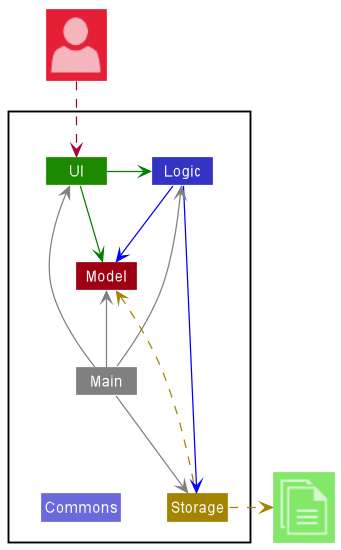
The Architecture Diagram given above explains the high-level design of the App.
Given below is a quick overview of main components and how they interact with each other.
Main components of the architecture
Main has two classes called Main
and MainApp.
It is responsible for,
- At app launch: Initializes the components in the correct sequence, and connects them up with each other.
- At shut down: Shuts down the components and invokes cleanup methods where necessary.
Commons represents a collection of classes used by multiple other components.
The rest of the App consists of four components.
-
UI: The UI of the App. -
Logic: The command executor. -
Model: Holds the data of the App in memory. -
Storage: Reads data from, and writes data to, the hard disk.
How the architecture components interact with each other
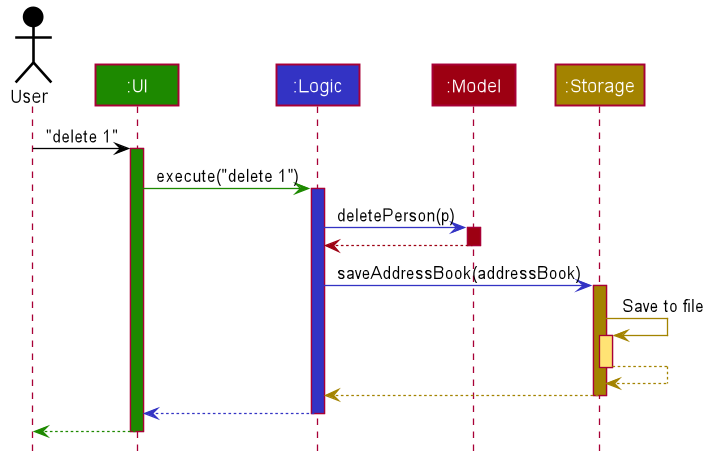
The Sequence Diagram below shows how the components interact with each other for the scenario where the user issues
the command delete 1.
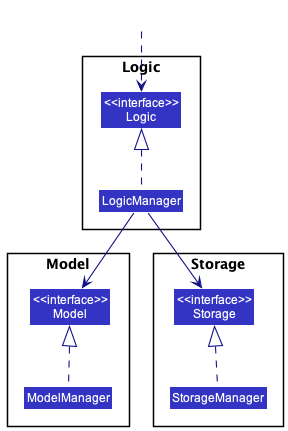
Each of the four main components (also shown in the diagram above),
- defines its API in an
interfacewith the same name as the Component. - implements its functionality using a concrete
{Component Name}Managerclass (which follows the corresponding APIinterfacementioned in the previous point).
For example, the Logic component defines its API in the Logic.java interface and implements its functionality using
the LogicManager.java class which follows the Logic interface. Other components interact with a given component
through its interface rather than the concrete class (reason: to prevent outside component’s being coupled to the
implementation of a component), as illustrated in the (partial) class diagram below.
The sections below give more details of each component.
UI component
The API of this component is specified in Ui.java
Here’s a partial class diagram of the Ui component, certain components have been omitted for brevity’s sake:
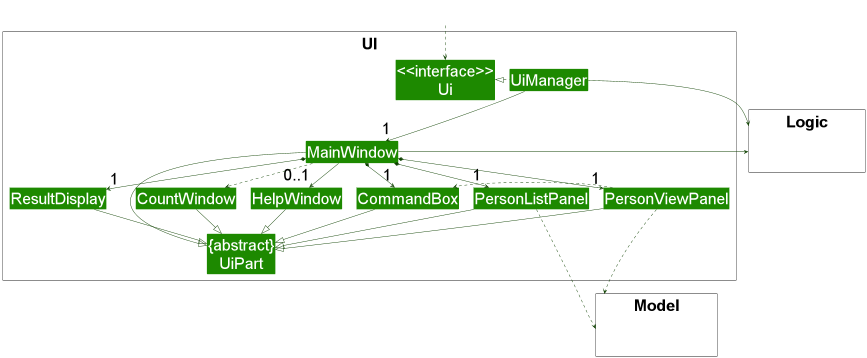
The UI consists of a MainWindow that is made up of parts e.g.CommandBox, ResultDisplay, PersonListPanel, etc.
All these, including the MainWindow, inherit from the abstract UiPart class which captures
the commonalities between classes that represent parts of the visible GUI.
The UI component uses the JavaFx UI framework. The layout of these UI parts are defined in matching .fxml files that
are in the src/main/resources/view folder. For example, the layout of the
MainWindow
is specified in MainWindow.fxml
The UI component,
- executes user commands using the
Logiccomponent. - listens for changes to
Modeldata so that the UI can be updated with the modified data. - keeps a reference to the
Logiccomponent, because theUIrelies on theLogicto execute commands. - depends on some classes in the
Modelcomponent, as it displaysPersonobject residing in theModel.
Logic component
API : Logic.java
Here’s a (partial) class diagram of the Logic component:
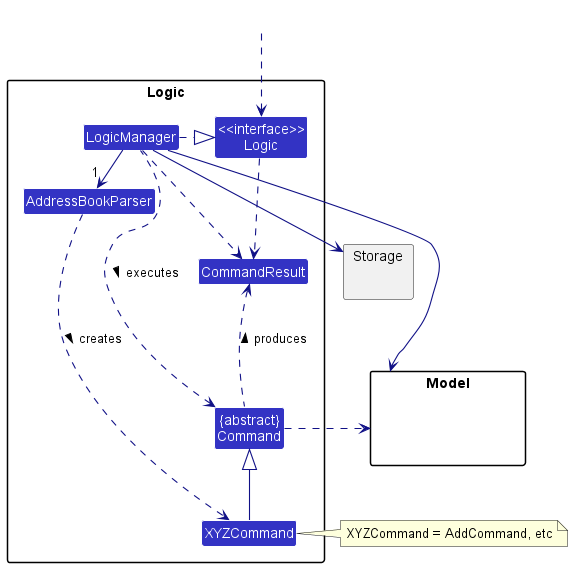
How the Logic component works:
- When
Logicis called upon to execute a command, it uses theAddressBookParserclass to parse the user command. - This results in a
Commandobject (more precisely, an object of one of its subclasses e.g.,AddCommand) which is executed by theLogicManager. - The command can communicate with the
Modelwhen it is executed (e.g. to add a person). - The result of the command execution is encapsulated as a
CommandResultobject which is returned back fromLogic.
The Sequence Diagram below illustrates the interactions within the Logic component for the execute("delete 1") API call.
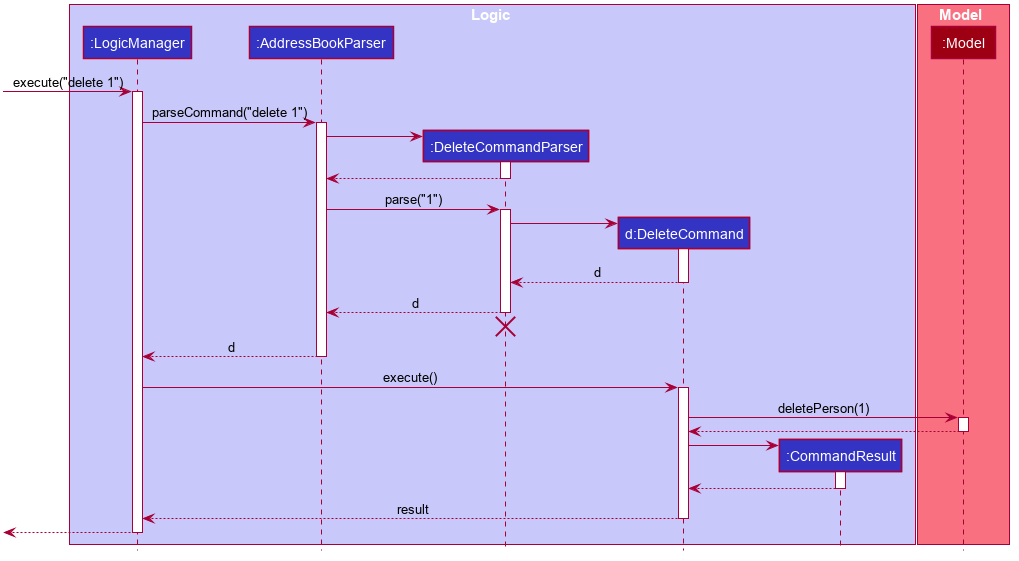
 Note: The lifeline for
 DeleteCommandParser
should end at the destroy marker (X) but due to a limitation of PlantUML, the lifeline reaches the end of diagram.
Here are the other classes in Logic (omitted from the class diagram above) that are used for parsing a user command:
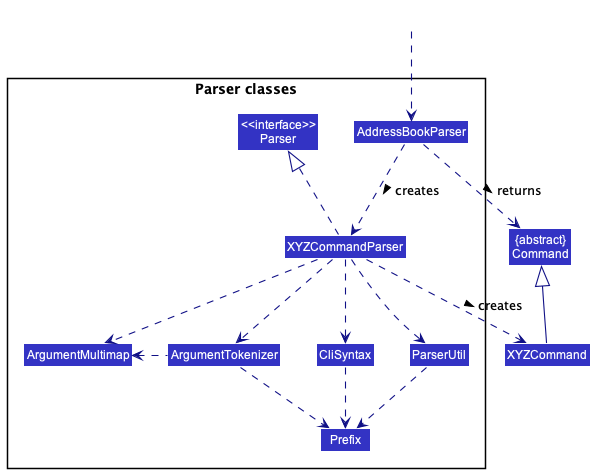
How the parsing works:
- When called upon to parse a user command, the
AddressBookParserclass creates anXYZCommandParser(XYZis a placeholder for the specific command name e.g.,AddCommandParser) which uses the other classes shown above to parse the user command and create aXYZCommandobject (e.g.,AddCommand) which theAddressBookParserreturns back as aCommandobject. - When parsing a
getcommand, theAddressBookParserclass creates aGetCommandParserto parse the prefix of thegetcommand (e.g.,/hw). If thegetcommand only requires a prefix (e.g.,get /inp&get /outp), the respectiveGetXYZCommandobject is created. If thegetcommand requires parameters (e.g.,get /hw North), the prefix is parsed accordingly within theGetCommandParserbefore the respectiveGetXYZCommandParseris created to parse the parameters and create the appropriateGetXYZCommandto be returned. - All
XYZCommandParserandGetXYZCommandParserclasses (e.g.,AddCommandParser,DeleteCommandParser, …) inherit from theParserinterface so that they can be treated similarly where possible e.g, during testing.
Model component
API : Model.java
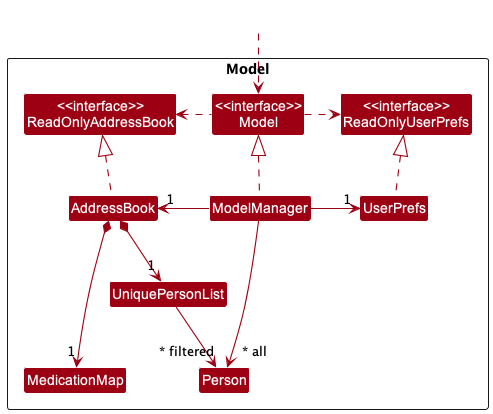
The partial class diagram above shows the classes that make up the Model component. Classes used by Person objects
through composition are omitted for brevity and shown later.
The Model component,
- stores all registered patient data i.e., all
Personobjects (which are contained in aUniquePersonListobject). - stores the currently ‘selected’
Personobjects (e.g., results of a search query) as a separate filtered list which is exposed to outsiders as an unmodifiableObservableList<Person>that can be ‘observed’ e.g. the UI can be bound to this list so that the UI automatically updates when the data in the list change. - stores all prescribed medication data in a
MedicationMapobject. - stores all appointment data (as
Appointmentobjects in aPersonobject). - stores a
UserPrefobject that represents the user’s preferences. This is exposed to the outside as aReadOnlyUserPrefobjects. - does not depend on any of the other three components (as the
Modelrepresents data entities of the domain, they should make sense on their own without depending on other components)
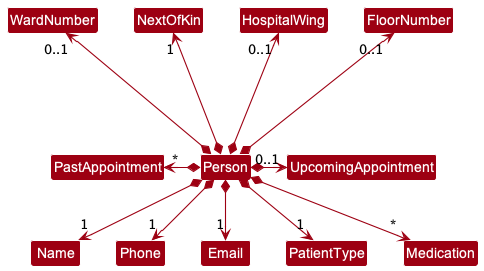
A patient (i.e. Person) stores related fields through composition, as shown in the class diagram below.
Storage component
API : Storage.java
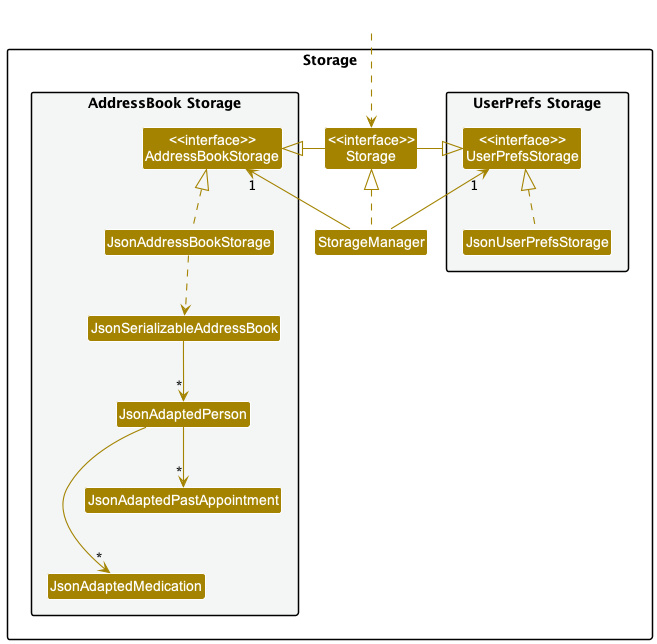
The Storage component,
- can save both patient data and user preference data in json format, and read them back into corresponding objects.
- inherits from both
AddressBookStorageandUserPrefStorage, which means it can be treated as either one (if only the functionality of only one is needed). - depends on some classes in the
Modelcomponent (because theStoragecomponent’s job is to save/retrieve objects that belong to theModel)
Common classes
Classes used by multiple components are in the seedu.addressbook.commons package.
Implementation
This section describes some noteworthy details on how certain features are implemented.
Add Command
The add command is used to create a new patient in the app and set the necessary fields for that patient,
namely they are the: Name, Phone, Email, NextOfKin, PatientType,HospitalWing, FloorNumber, WardNumber,
Medication(Long Term Medication) and UpcomingAppointment fields. Note that the PastAppointment field cannot be
updated in this command, that is done in the Appt and
DelAppt commands.
The format for the add command can be seen here.
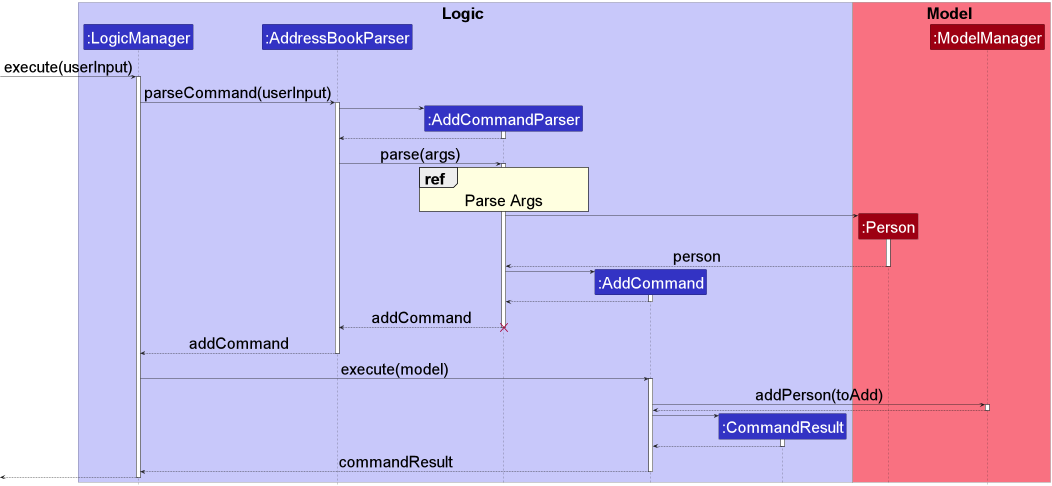
When add ... is inputted, the UI calls the LogicManager which then calls the AddressBookParser to parse the
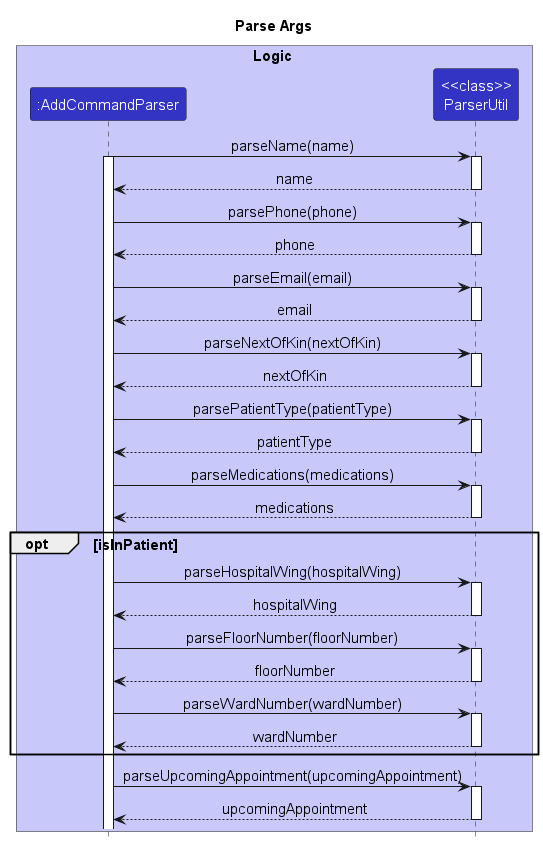
input. This then creates an instance of the AddCommandParser to parse the args via the respective static
ParserUtil functions. If duplicate parameters are inputted (e.g. add n/Joe n/Mel), only the last instance is taken,
similar to how edit, appt and consult are executed.
The AddCommandParser will then create the corresponding Person object and then feed it to a AddCommand object it
creates and returns. The LogicManager then executes the AddCommand, which adds the Person to the model.
The following sequence diagram shows how the add command works:
The following sequence diagram shows how the argument parsing for the add command works:
Edit Command
The edit command is used to change the information of an existing patient in the app. The fields supported are:
Name, Phone, Email, NextOfKin, PatientType,HospitalWing, FloorNumber, WardNumber,
Medication(Long Term Medications) and UpcomingAppointment. Note that the PastAppointment field cannot be updated
in this command, that is done in the Appt and
DelAppt commands.
The format for the edit command can be seen here.
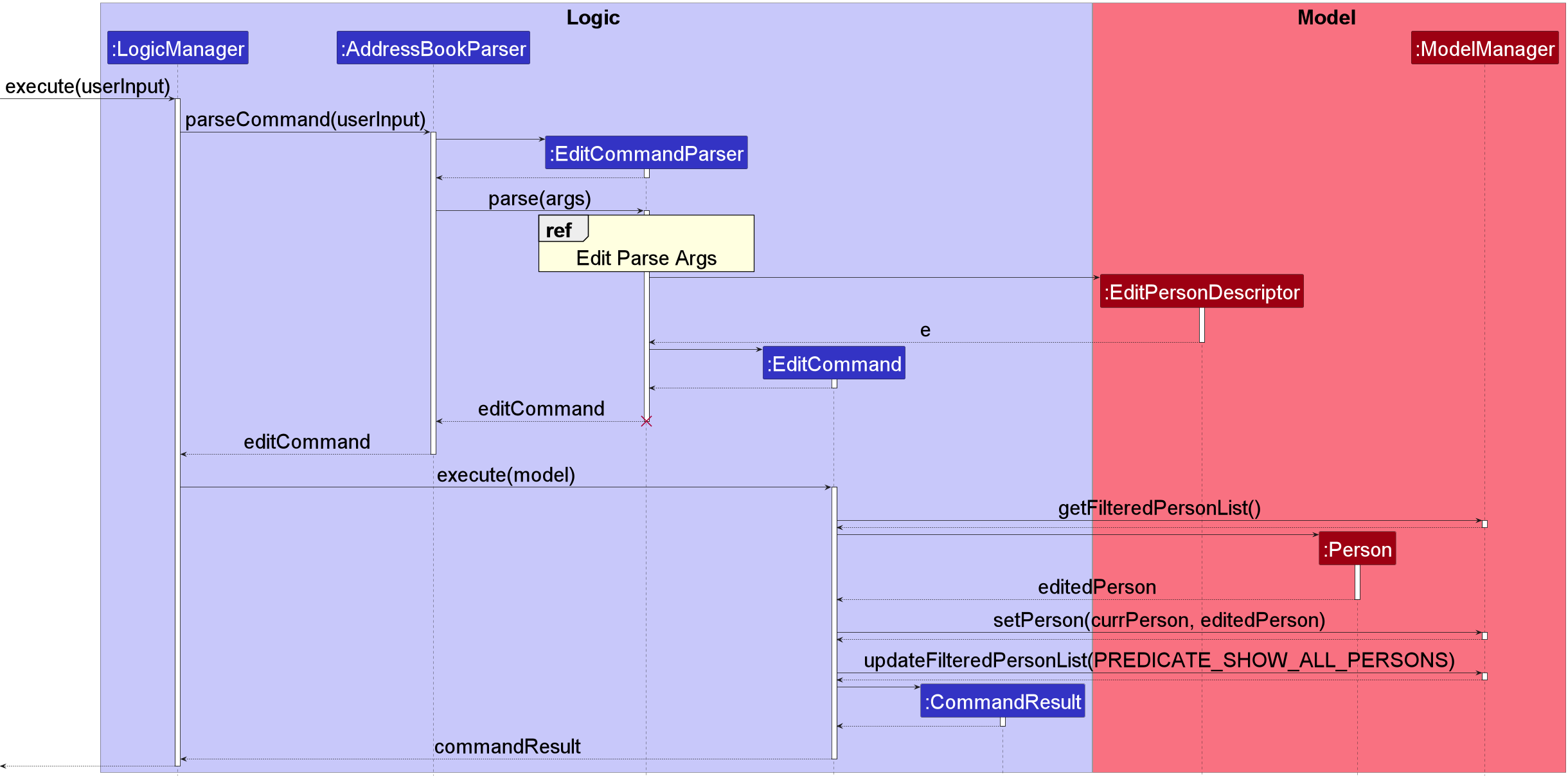
When edit INDEX ... is inputted, the UI calls the LogicManager which then calls the AddressBookParser to parse the
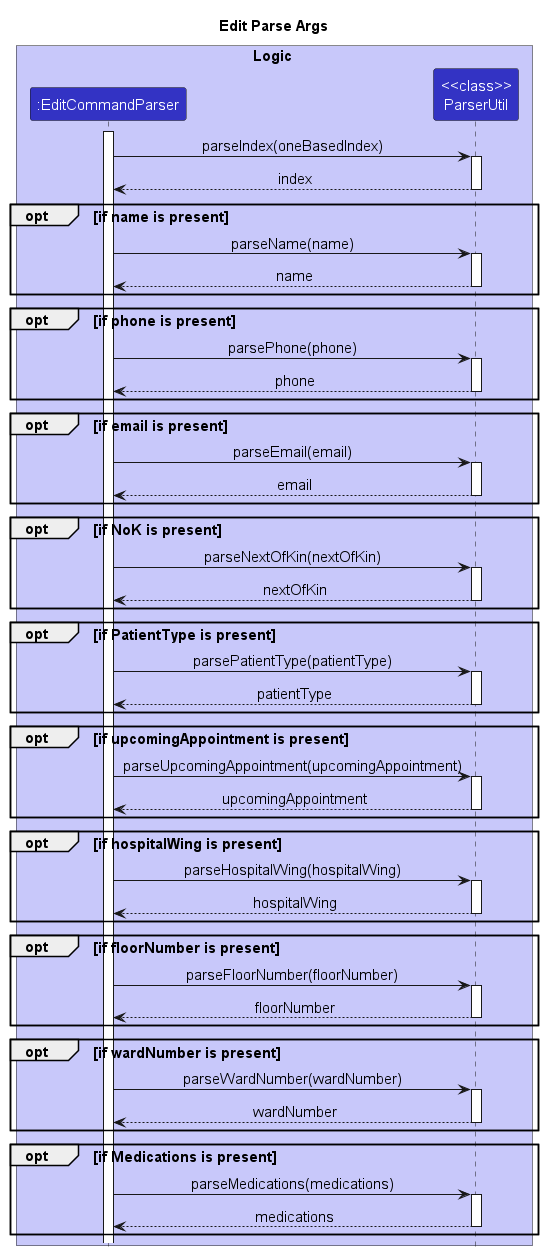
input. This then creates an instance of the EditCommandParser to parse the INDEX and args via the respective static
ParserUtil functions. If duplicate parameters are inputted (e.g. add n/Joe n/Mel), only the last instance is taken,
similar to how add, appt and consult are executed.
The EditCommandParser will then create the corresponding EditPersonDescriptor object and then feed it to a
EditCommand object it creates and returns. The LogicManager then executes the EditCommand, which creates a
Person from the EditPersonDescriptor provided and updates the model with this new Person.
The following sequence diagram shows how the edit command works:
The following sequence diagram shows how the argument parsing for the edit command works:
Appointments feature
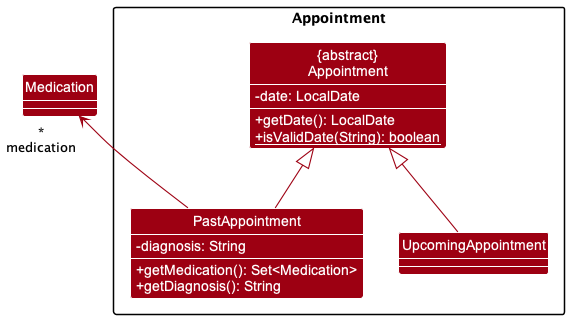
The class diagram above visualises the Appointment package. The members of the Medication class have been hidden.
Implementation
The appointment creation mechanism is facilitated by its own Appointment component under the Model component. There
are 2 types of appointments, namely, PastAppointment and UpcomingAppointment.
- Both of these extend the abstract
Appointmentclass, which implements theAppointment#getDate()operation. - The static method
Appointment#isValidDate()helps check against invalid date inputs for appointment creation.
PastAppointment
PastAppointments represent a completed appointment for a patient. They are guaranteed to be immutable as they
constitute of sensitive patient data. Apart from date, PastAppointments also require the following:
-
diagnosis- Stored as a string, and is compulsory for the creation of a
PastAppointment. Represents the doctor’s analysis of the patient’s state in the appointment, and is input using thediag/prefix. - Exposed using the
PastAppointment#getDiagnosis()method for use inJsonAdaptedPastAppointment.
- Stored as a string, and is compulsory for the creation of a
-
medication- Stored as a set of medication tags, a
PastAppointmentmay contain 0 or more medicine tags. Each medicine tag is input separately with am/prefix. - Exposed using the
PastApointment#getMedication()method for use inJsonAdaptedPastAppointment.
- Stored as a set of medication tags, a
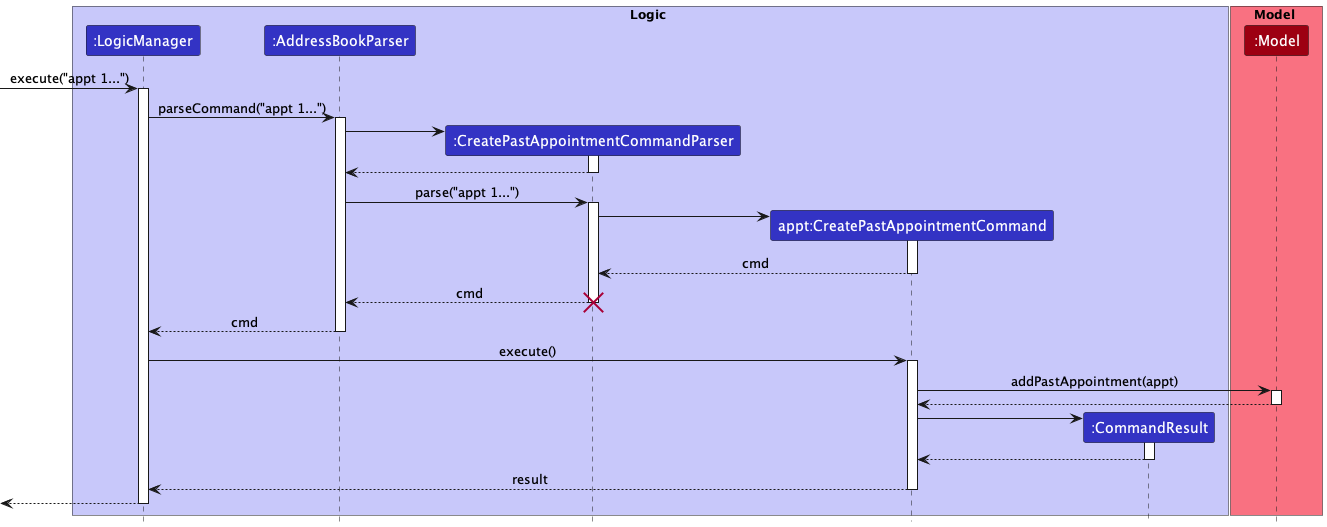
The following Sequence Diagram represents the creation of a PastAppointment using a CreatePastAppointmentCommand:
UpcomingAppointment
UpcomingAppointments represent an upcoming appointment for a patient. They only contain the date of the upcoming
appointment. A patient can only have a maximum of 1 UpcomingAppointment at any given time.
Given below is an example usage scenario and how the appointment mechanism behaves at each step.
Context: Patient John Davis had a past appointment on 12-06-2022 where they were diagnosed with a headache and
prescribed paracetamol medication as a painkiller. They are scheduled for a follow-up appointment on 16-06-2022.
Step 1. The medical assistant opens the application and executes get /n John Davis to find the target patient. The
assistant notices John is at index 2. John Davis currently has 0 PastAppointments and no UpcomingAppointment.
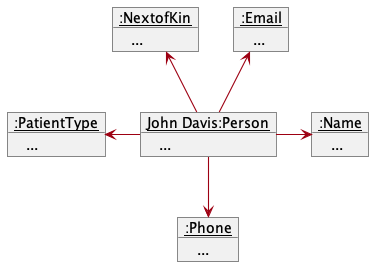
The values of John’s default details have been hidden in the above diagram.
Step 2. The medical assistant creates a PastAppointment for John by executing appt 2 on/12-06-2022 diag/headache
m/paracetamol. The PastAppointment count is now at 1.
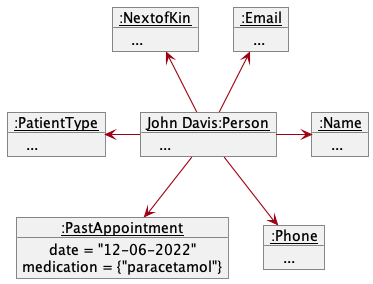
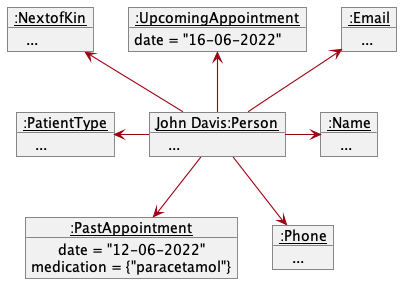
Step 3. The medical assistant creates an UpcomingAppointment for John by executing edit ua/16-06-2022. John
now has an UpcomingAppointment associated with him.
DelAppt (Delete Appointment) Command
The purpose of the delappt command is to remove the first PastAppointment from the selected
patient. If there is no appointment to delete, the command result box will display an error to the user.
The format accepted by the delappt command is delappt INDEX.
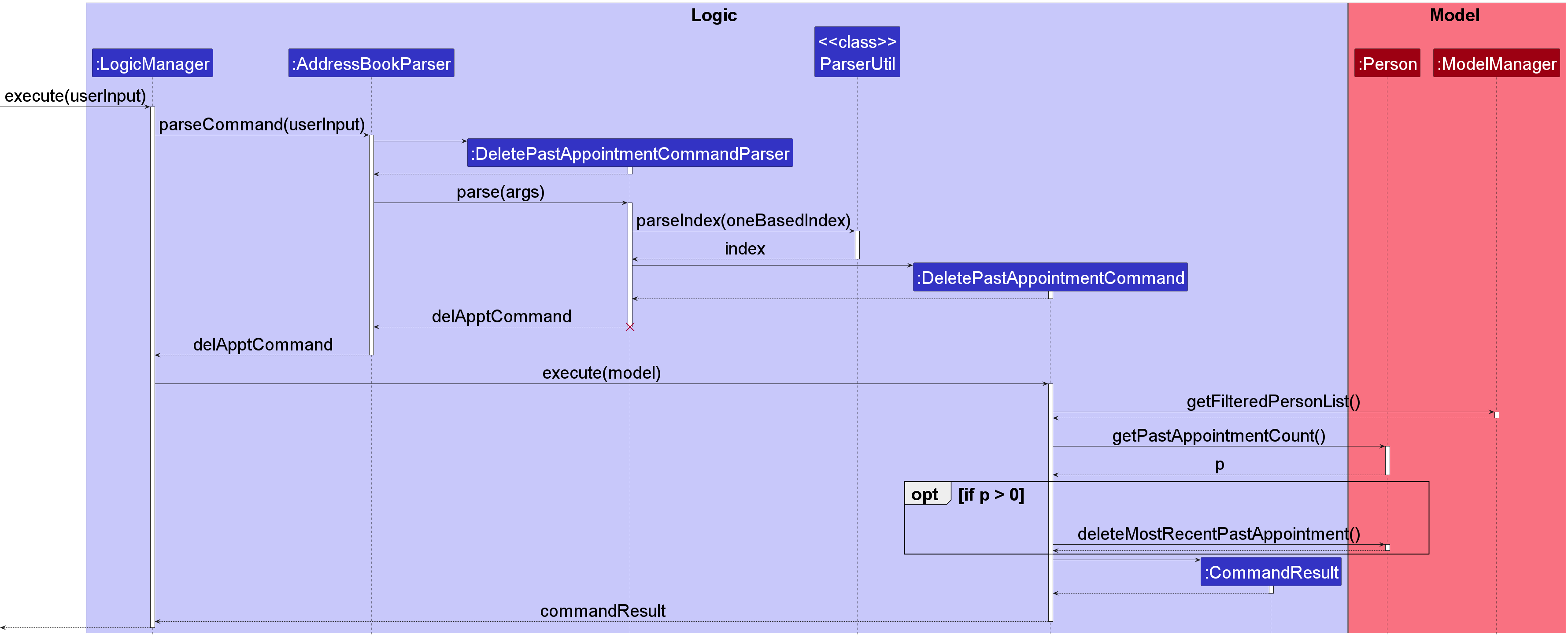
When delappt INDEX is inputted, the UI calls the LogicManager which then calls the AddressBookParser to parse the
input. This then creates an instance of the DeletePastAppointmentCommandParser to parse the INDEX with static
ParserUtil#parseIndex() function. If the INDEX format is invalid, a ParseException will be thrown.
The DeletePastAppointmentCommandParser then creates the DeletePastAppointmentCommand and returns it. The
LogicManager then executes the DeletePastAppointmentCommand, which first gets the current list of patients from the
Model. Then it gets the patient pointed to by INDEX, throwing a CommandException if the INDEX is out of bounds.
Finally, it checks that the patient has at least 1 PastAppointment and removes the most recent one.
If there are no PastAppointments, it will throw a CommandException.
The following sequence diagram shows how the delappt command works:
Consult Command
The purpose of the consult command is to simplify the process of creating a PastAppointment for
doctors. It will create a PastAppointment for the specified patient on the current date and if the
patient has an UpcomingAppointment for the current date, it will clear it. In this way, the doctor can attend to a
patient with just 1 command. As the command builds upon the functionality of other commands, it similarly utilises the
appt and edit in its implementation.
The format accepted by the consult command is consult INDEX diag/DIAGNOSIS [m/MEDICATION]...
When consult ... is inputted, the UI calls the LogicManager which then calls the AddressBookParser to parse the
input. This then creates an instance of the ConsultCommandParser to parse the INDEX, DIAGNOSIS and
MEDICATION(if any) with their respective static ParserUtil functions. If any of the inputs formats are invalid,
a ParseException will be thrown. The ConsultCommandParser then creates a PastAppointment for the current date and
an EditPersonDescriptor which will reset a patient’s upcoming appointment to blank if used.
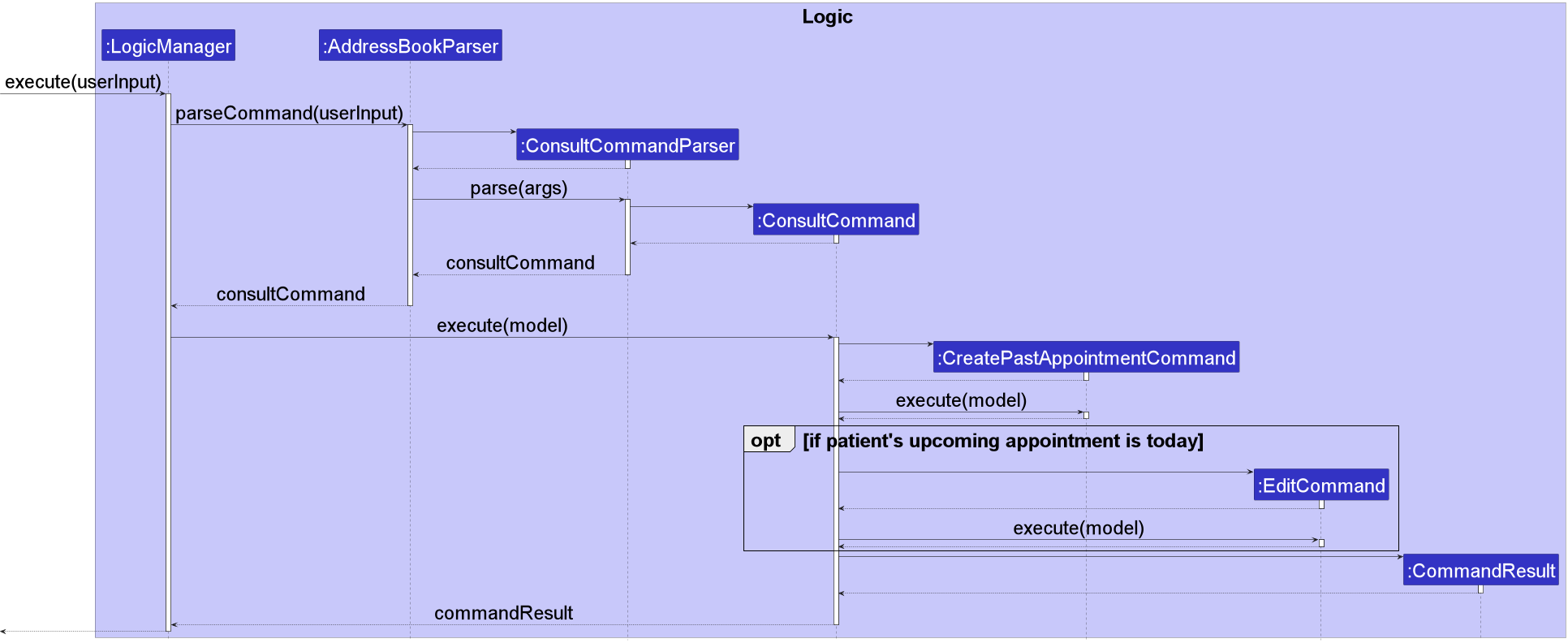
The ConsultCommandParser then creates the ConsultCommand and returns it. The LogicManager then executes the
ConsultCommand, which first creates a CreatePastAppointmentCommand and executes it to add the
past appointment to the patient. Then it checks if the patient has an upcoming appointment for the current date, if so,
the ConsultCommand creates an EditCommand and executes it to reset the patient’s upcoming
appointment field.
The following sequence diagram shows how the consult command works:
Count Command
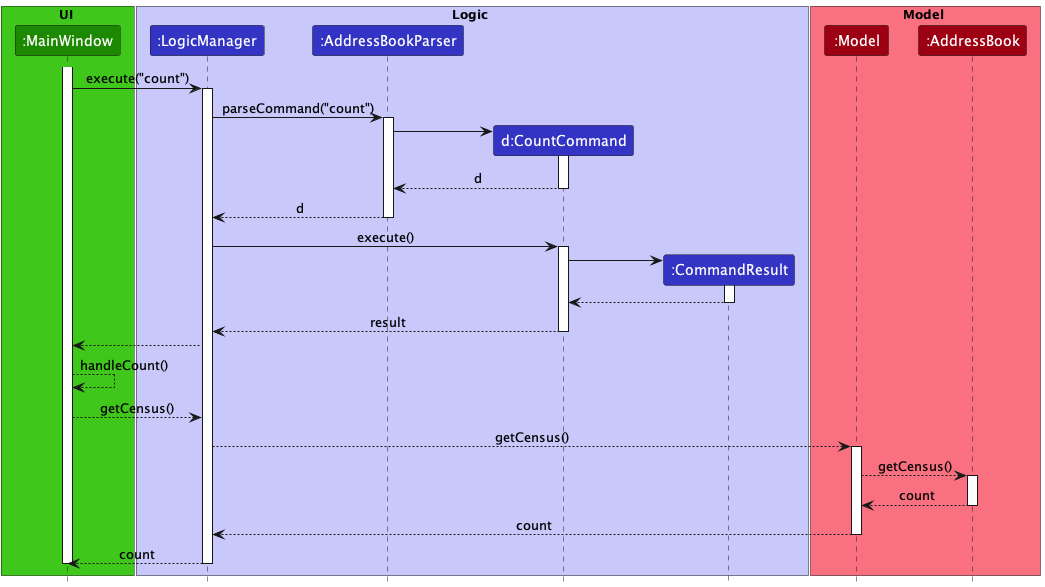
The count command allows the user to count the number of patients stored in checkUp. It also returns a list of long-term
medications and how many patients are taking them. The count command is facilitated by the CountCommand class.
Implementation
The count command is implemented by the CountCommand class which extends the Command class. The overridden execute()
method returns a CommandResult object which contains the number of patients and the list of long-term medications.
The list of patients are stored in the UniquePersonList class. The list of medications are stored in the
MedicationMap class, which encapsulates an ObservableMap object that maps the name of a medication (represented by a
string) to the number of patients taking it (represented by an integer). Both the UniquePersonList and MedicationMap
classes are stored in the Model component, and accessible through the ReadOnlyAddressBook interface.
The CountCommand class indicates to the UI component to open the count window upon execution. The UI component
depends on the Logic interface to get the count data, through the Logic#getCensus() method. The Logic interface
uses the Model interface through the Model#getCensus() method which uses the ReadOnlyAddressBook interface to get
the data. Model#getCensus() in turn calls the ReadOnlyAddressBook#getCensus() method which interacts with the
UniquePersonList class to get the list of patients, and the MedicationMap class to get the list of long-term
medications.
The following sequence diagram shows how the count command works:
Get Commands (By prefixes)
The get command contains a series of sub-commands that allows the user to get
a list of persons based on the prefixes inputted. It is implemented the same way as the AddressBookParser class,
but it matches the following prefix of the user input instead of the first command word.
Only the first prefix following the get command word will be considered. Extra prefix inputs will be ignored.
By having a parent GetCommand class, we can have a series of sub-commands that inherits from it.
This way, new implementations of other items to be filtered when using the get command can be easily
added in the future.
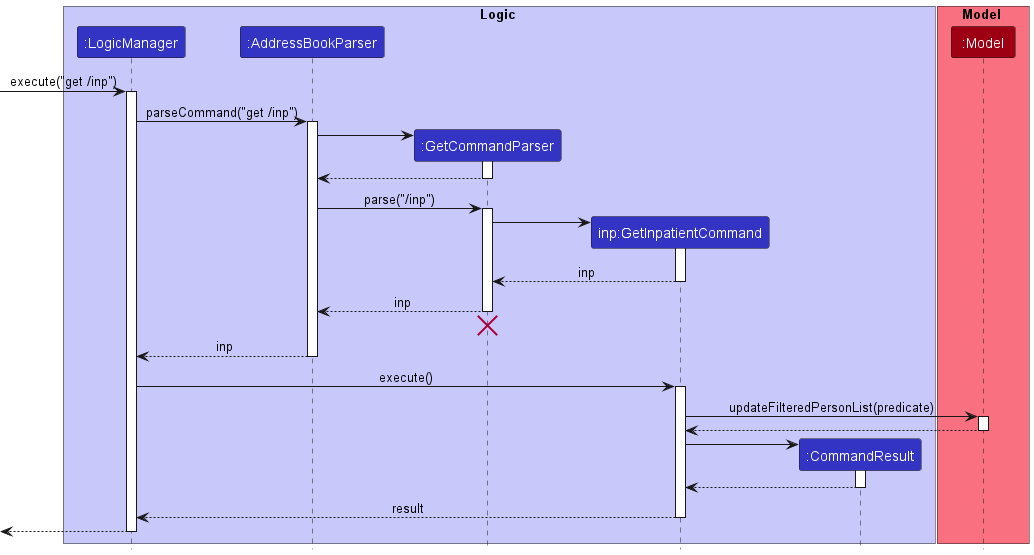
There are 2 types of inputs for get commands, specifically those that only require a prefix (/inp & /outp) and
those that require a prefix and parameters.
Below is a Sequence Diagram illustrating the implementation of GetCommand for get commands that only require a prefix.
The command get /inp will be used for this example.
This Sequence Diagram below illustrates the implementation of the GetCommand for get commands that require parameters
in addition to the prefix. The command get /hw North will be used for this example.
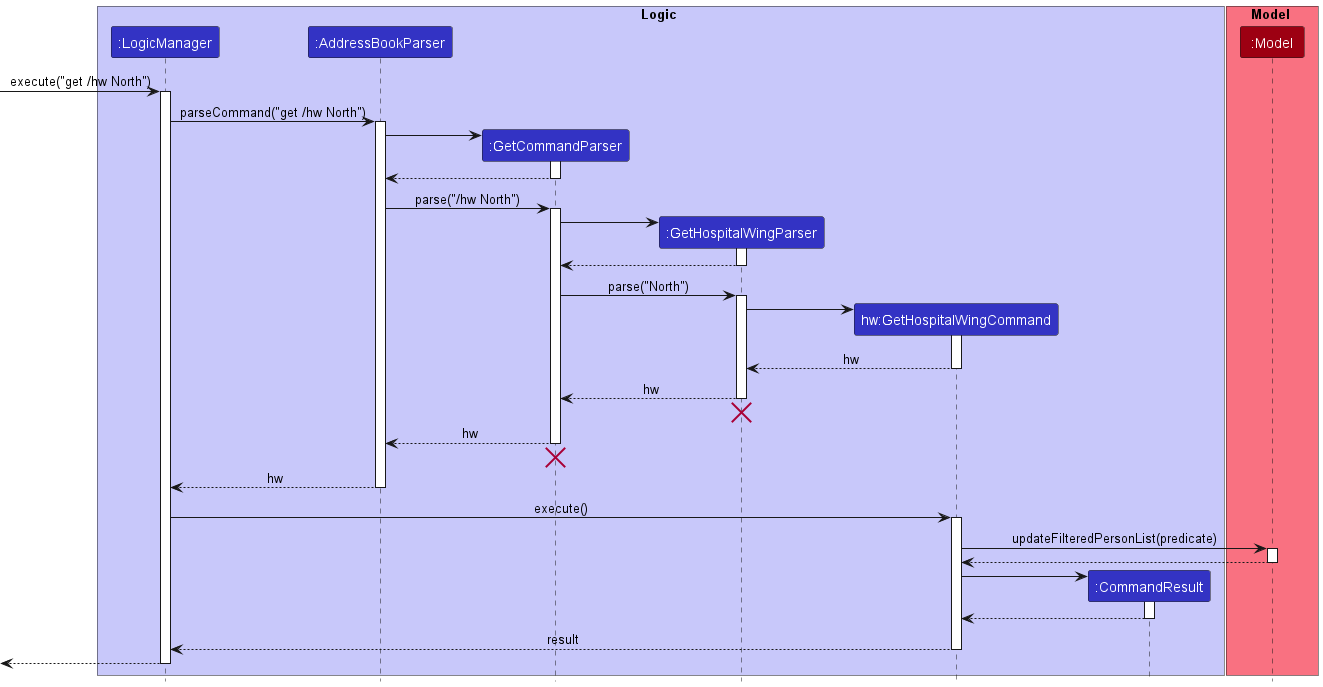
All get commands are implemented in the following steps:
- User input prefix is matched in
GetCommandParserclass - If the get command takes in both a prefix and parameter, the parser for the get command corresponding to the prefix is called and parses the parameters inputted
- Specific child classes of
GetCommandis instantiated and executed - The model is then updated such that the filtered list only displays patients whose details match the query arguments of that prefix
Appointment Date (/appton)
Getting the list of patients with an appointment on the query date involves the following steps:
- Prefix
/apptonis matched using an instance ofGetCommandParser - A new
GetAppointmentByDateCommandParserinstance is created and parses the user input (specifically the date inputted) - A
GetAppointmentByDateCommandinstance containing the date of the appointment is created and returned - The
GetAppointmentByDateCommandis executed, accessing the list ofPastAppointments for every patient to be returned in aCommandResult - The model is updated such that the filtered list only displays patients who have both an upcoming or past appointment on the query date
To ease the parsing of date inputs using LocalDate, we have standardized the input query to be in the format of dd-MM-yyyy.
Past appointments of a patient (/appt)
Getting the past appointments of a patient involves the following steps:
- Prefix
/apptis matched using an instance ofGetCommandParser - A new
GetPastAppointmentCommandParserinstance is created and parses the user input (specifically the index inputted) - A
GetPastAppointmentCommandinstance containing the index of the patient to be updated is created and returned - The
GetPastAppointmentCommandis executed, accessing the list ofPastAppointmentof the specified patient to be returned in aCommandResult - The list of
PastAppointmentwill then be displayed in theResultDisplay
Floor Number (/fn)
Getting the list of patients in the query floor number involves the following steps:
- Prefix
/fnis matched inGetCommandParserclass - A new
GetFloorNumberCommandParserinstance is created and parses the user input - A
GetFloorNumberCommandinstance is returned - The model is updated such that the filtered list only displays patients who are on the query floor number
Strict restrictions are placed to prevent querying and parsing of invalid floor numbers. Invalid floor numbers include floor numbers less than 1, negative numbers and characters or strings.
Hospital Wing (/hw)
Getting the list of patients in the query hospital wing involves the following steps:
- Prefix
/hwis matched inGetCommandParserclass - A new
GetHospitalWingCommandParserinstance is created and parses the user input - A
GetHospitalWingCommandinstance is returned - The model is updated such that the filtered list only displays patients who are in the query hospital wing
Strict restrictions are placed to prevent too many varieties of hospital wings. Hospital wings only accepts
the following values (case-insensitive) as valid inputs: south, north, east, and west.
Long-Term Medication (/m)
Getting the list of patients who are taking the query long-term medication involves the following steps:
- Prefix
/mis matched inGetCommandParserclass - A new
GetMedicationCommandParserinstance is created and parses the user input - A
GetMedicationCommandinstance is returned - The model is updated such that the filtered list only displays patients who are taking the query long-term medication
Medication name searches are case-insensitive. Each search requires a full-word match.
For example, searching for paracet will only return patients with long-term medication name
paracet, and not paracetamol.
Name (/n)
Getting the list of patients whose name contains the query name involves the following steps:
- Prefix
/nis matched inGetCommandParserclass - A new
GetNameCommandParserinstance is created and parses the user input - A
GetNameCommandinstance is returned - The model is updated such that the filtered list only displays patients whose name contains the query name
Name searches are case-insensitive. Each search requires a full-word match.
For example, searching for john will only return patients with name John, and not Johnson.
Next of Kin (/nok)
Getting the information of the next of kin of the list of query patient names involves the following steps:
- Prefix
/nokis matched inGetCommandParserclass - A new
GetNextOfKinCommandParserinstance is created and parses the user input - A
GetNextOfKinCommandinstance is returned - The model is updated such that the filtered list only displays query patients’ next of kin details
Details of the next of kin include the name, relationship to patient and phone number.
Patient type (/inp & /outp)
Getting the list of inpatients and outpatients involves the following steps:
- Prefix
/inpor/outpis matched using an instance ofGetCommandParser - The respective
GetInpatientCommandorGetOutpatientCommandinstance is created and returned - The model is updated such that the filtered list only displays inpatients or outpatients
If additional parameters are inputted (e.g. get /inp hello world), the extra parameters will be ignored, similar to
how help, list, exit and clear are executed.
Ward Number (/wn)
Getting the list of patients in the query ward number involves the following steps:
- Prefix
/wnis matched inGetCommandParserclass - A new
GetWardNumberCommandParserinstance is created and parses the user input - A
GetWardNumberCommandinstance is returned - The model is updated such that the filtered list only displays patients who are in the query ward number
Strict restrictions are placed to prevent too many varieties of ward number inputs. This way the regex for searching
for ward numbers is simplified. Due to differing places having different ways of numbering their ward numbers, we
have standardised it to be in the format of Uppercase Alphabet + 3 Numbers. For example, A123, B241, C005, etc.
If the user tries to query for a ward number of incorrect format, the search will still proceed, but no patients will be
displayed.
Patient Details Panel
The Patient Details Panel provides a detailed view into the information of a specific patient. All the patient’s personal
particulars and appointment details are reflected in this panel. The patient being viewed defaults to the first patient
in the app, if present. Whenever the add or edit is called on a patient, the patient
displayed switches to that patient in question. The view command can be used to manually select the
person to display in the Patient Details Panel.
Clickability
Although checkUp is a CLI based application, Patient Details Panel supports clicking on individual fields to bring up the
required edit command. To illustrate this in more detail, an example is shown below of what happens when Alex Yeoh’s
email field is clicked on.
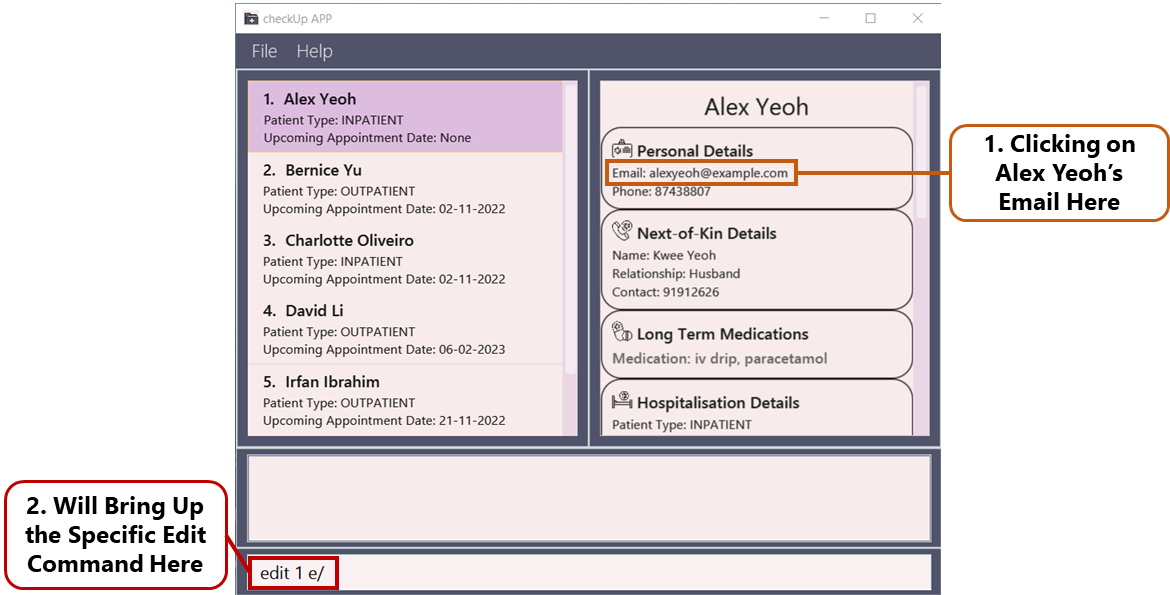
When Alex Yeoh’s email field is clicked on, MainWindow will recursively go through its child elements until it finds
the first matching EventHandler, which is the email#getOnMouseCLicked() handler. This will then call
PersonViewPanel#CheckCLickType(event, prefix) to ensure that the event was a double primary click. (Note that the prefix
passed is different for each field, in this case it is PREFIX_EMAIL)
If so, it will call the MainWindow#handlePersonViewClick(prefix) which will combine the command word, prefix and index
of the person currently being viewed into a string, which is edit 1 e/. Then it will use
CommandBox#setCommandTextField(str) to update the text inside the CommandBox.
Person Card Clickability
Similar to the clickability of Patient Details Panel, person cards in the Patient List Panel can be clicked on to update
the Person View Panel with the details of the patient that was clicked on. This is done by executing a view command
when a person card is clicked on.
MainWindow has the method executeCommand which will be passed on as an argument for the construction of a
PersonListPanel object which in turn is passed on as an argument to the creation of each PersonCard object.
When clicked, a PersonCard executes the handleMouseClicked method which makes use of the MainWindow#executeCommand
method. The MainWindow#executeCommand method executes a view command with the corresponding index of the
PersonCard that was clicked. This is done to prevent PersonListPanel and PersonCard from having direct access to
Model or Logic, choosing to maintain MainWindow and Ui as the classes that interact with Logic instead.
Things to note:
- this is only done for
PersonCardand notContactCardasContactCardalready has all the information of the next-of-kin encapsulated on it. Hence, there is no need for the detailed view of the patient. - You need to double-click the person card.
View Command
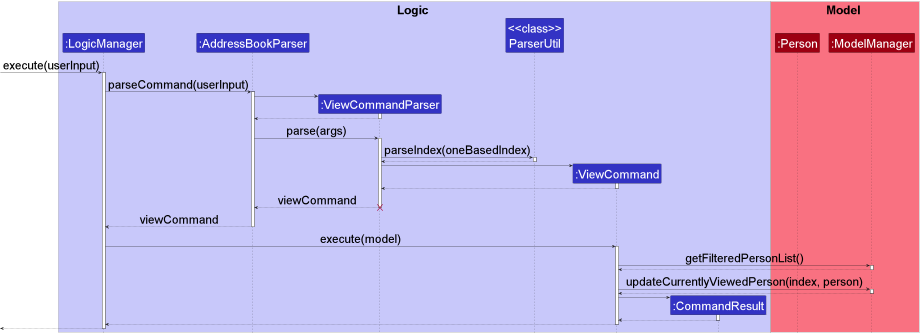
The purpose of the view command is to manually change the patient currently displayed in the Patient Details Panel.
The format accepted by the view command is view INDEX
When view INDEX is inputted, the UI calls the LogicManager which then calls the AddressBookParser to parse the
input. This then creates an instance of the ViewCommandParser to parse the INDEX with static
ParserUtil#parseIndex() function. If the INDEX format is invalid, a ParseException will be thrown.
The ViewCommandParser then creates the ViewCommand and returns it. The LogicManager then executes the
ViewCommand, which updates the ModelManager#currentlyViewedPerson in the ModelManager to the one specified in the
INDEX if it is valid. A CommandException is thrown if the INDEX is out of bounds.
The following sequence diagram shows how the view command works:
Keyboard Shortcuts
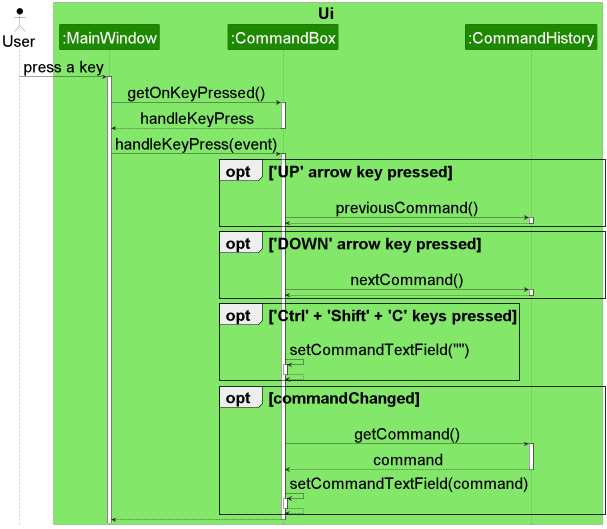
To improve the user experience, three keyboard shortcuts are added to the CommandBox to make typing in commands easier.
They are:
-
UParrow key: bring up the previous command, if any. -
Downarrow key: bring up the next command, if any. -
Ctrl+Shift+Ckeys: clears theCommandBox#commandTextFieldof text.
When a key is pressed, MainWindow will recursively go through its child elements until it finds the first matching
EventHandler, which is the CommandBox#commandTextField#getOnKeyPressed() handler. This will then call the
CommandBox#handleKeyPress(event) to check the key pressed. If the UP arrow key was pressed,
CommandHistory#previousCommand() is called to set the command to the previous command, if any. If the DOWN arrow key
was pressed, CommandHistory#nextCommand() is called to set the command to the next command, if any. If the Ctrl +
Shift + C keys were pressed together, it will clear all the text in the commandTextField with the
CommandBox#setCommandTextField(str) command.
The following sequence diagram shows how the keyboard shortcuts work:
Documentation, logging, testing, configuration, dev-ops
Appendix: Requirements
Product scope
Target user profile:
- for hospital staff
- prefer CLI over GUI
- can type fast
- prefers typing to mouse interactions
- is reasonably comfortable using CLI apps
Value proposition: The product aims to enhance and increase the productivity and efficiency of hospital staff in terms of patients management, within a single hospital/clinic only.
User stories
Priorities: High (must have) - * * *, Medium (nice to have) - * *, Low (unlikely to have) - *
| Priority | As a … | I want to … | So that I can … |
|---|---|---|---|
* * * |
doctor | search for patients by name | view patient’s relevant details for ease of diagnosis |
* * * |
hospital staff | retrieve patient contact info and next-of-kin data | quickly and efficiently contact the patient or someone near them |
* * |
receptionist | check the total number of patients in my hospital | know when the hospital is oversubscribed |
* * * |
hospital staff | retrieve patients by ward number | attend to them quickly |
* * * |
hospital staff | retrieve patients by floor number | attend to them quickly |
* * * |
hospital staff | retrieve patients by hospital wings | attend to them quickly |
* * |
hospital staff | have a list of inpatients and outpatients | easily see which patients are staying in the hospital |
* * * |
receptionist | check if patient is inpatient or for daily checkup | know where to direct them |
* * * |
receptionist | create patient profiles | store new patients into the system |
* * * |
hospital staff | edit patient profiles | update existing patients info |
* * * |
nurse | retrieve patients by medication | view all patients on a type of long-term medication for easier medication administration |
* * * |
hospital staff | remove patients from the database | remove redundant entries that are no longer necessary |
* * * |
doctor | view the previous appointments of a patient | see patients’ previous consultation diagnoses or issued medications |
* * * |
receptionist | retrieve patients by their appointment date | know which patients have scheduled an appointment on a particular day |
* |
hospital staff | retrieve patient count by medication | know which medication is most commonly prescribed |
* * |
receptionist | add appointments to a patient’s record | keep track of a patient’s medical history and backdate records |
* * |
doctor | store a patient’s next appointment date | keep track of when the patient is due for their next appointment |
* * |
hospital staff | have easy access to my patients’ info | attend to them quickly |
* * |
hospital staff | edit my patients’ info without having to enter the whole command | attend to them quickly |
* * * |
nurse | delete my patient’s past appointments | correct any errors I make |
* * |
doctor | document my consultation with a patient easily | attend to them quickly and ensure that the system is always updated |
* * |
hospital staff | view the previous appointments of a patient | see patients’ medical history |
* * |
hospital staff | navigate through commands I have previously entered | avoid typing the same commands repeatedly |
- Doctor - Doctor
- Receptionist - Receptionist
- Nurse - Nurse
- Hospital staff - Doctor, receptionist, nurse
Use cases
(For all use cases below, the System is checkUp and the Actor is the user, unless specified otherwise)
Use case 1: Register a patient
MSS
- User requests to add a patient
- checkUp adds patient to system
-
checkUp displays the patient added
Use case ends.
Extensions
-
1a. The user input is invalid.
-
1a1. checkUp shows an error message.
Use case resumes at step 1.
-
Use case 2: Delete a patient
MSS
- User requests to list patients
- checkUp shows a list of patients
- User requests to delete a specific patient in the list
-
checkUp deletes the patient
Use case ends.
Extensions
-
2a. The list is empty.
Use case ends.
-
3a. The given index is invalid.
-
3a1. checkUp shows an error message.
Use case resumes at step 2.
-
Use case 3: Backdating a patient's appointment record
MSS
- User requests to filter list of patients by name
- checkUp shows a list of patients
- User requests to create a past appointment for a specific patient in the list
-
checkUp creates the appointment
Use case ends.
Extensions
-
2a. The list is empty.
Use case ends.
-
3a. The given index is invalid.
-
3a1. checkUp shows an error message.
Use case resumes at step 2.
-
-
3b. The given date is invalid.
-
3b1. checkUp shows an error message.
Use case resumes at step 2.
-
-
4a. The command is missing the date or diagnosis.
-
4a1. checkUp shows an error message.
Use case resumes at step 2.
-
Use case 4: Setting a patient's next appointment date
MSS
- User requests to filter list of patients by name
- checkUp shows a list of patients
- User requests to set a future appointment for a specific patient in the list
-
checkUp sets the appointment
Use case ends.
Extensions
-
2a. The list is empty.
Use case ends.
-
3a. The given index is invalid.
-
3a1. checkUp shows an error message.
Use case resumes at step 2.
-
-
3b. The given date is invalid or in the past.
-
3b1. checkUp shows an error message.
Use case resumes at step 2.
-
-
4a. The user sets the wrong date.
Use case resumes at step 2.
Use case 5: Removing a patient's next appointment date
MSS
- User requests to filter list of patients by name
- checkUp shows a list of patients
- User requests to remove a future appointment for a specific patient in the list
-
checkUp removes the appointment
Use case ends.
Extensions
-
2a. The list is empty.
Use case ends.
-
3a. The given index is invalid.
-
3a1. checkUp shows an error message.
Use case resumes at step 2.
-
Use case 6: Checking number of patients in a ward
MSS
- User requests to filter list of patients by ward number
-
checkUp shows number of patients in given ward number
Use case ends.
Extensions
-
1a. The user input is invalid
-
1a1. checkUp shows an empty list
Use case resumes at step 1.
-
-
2a. The list is empty.
Use case ends.
Use case 7: Recording number of patient influx
MSS
- User requests count of patients in the hospital
-
checkUp shows number of patients in the hospital
Use case ends.
Extensions
-
1a. The user input is invalid
-
1a1. checkUp shows an error message
Use case resumes at step 1.
-
Use case 8: Consulting a patient
MSS
- User requests to list persons
- checkUp shows a list of persons
- User request to consult a patient
- checkUp creates a past appointment for the User
-
checkUp removes the upcoming appointment for the current date for the User
Use case ends.
Extensions
-
2a. The list is empty.
Use case ends.
-
3a. The given index is invalid.
-
3a1. checkUp shows an error message.
Use case resumes at step 2.
-
-
5a. The selected patient has no upcoming appointments or the upcoming appointment is not on the current date.
Use case ends.
Non-Functional Requirements
- Should work on any mainstream OS as long as it has Java
11or above installed. - Should be able to hold up to 1000 patients without a noticeable sluggishness in performance for typical usage.
- A user with above average typing speed for regular English text (i.e. not code, not system admin commands) should be able to accomplish most of the tasks faster using commands than using the mouse.
- Stored data should be compatible with other OSes and versions of the application.
- Users must be able to access the application without an internet connection.
- The application should load up within 3-5 seconds.
Glossary
- Mainstream OS: Windows, Linux, Unix, OS-X
- Private contact detail: A contact detail that is not meant to be shared with others
- Receptionist/Hospital Staff: Member of hospital management, able to view and edit ALL patient contact details (including private contact details).
Appendix: Instructions for manual testing
Given below are instructions to test the app manually.
Note: These instructions only provide a starting point for testers to work on;
testers are expected to do more exploratory testing.
Launch and shutdown
-
Initial launch
-
Download the jar file and copy into an empty folder
-
Double-click the jar file Expected: Shows the GUI with a set of sample contacts. The window size may not be optimum.
-
-
Saving window preferences
-
Resize the window to an optimum size. Move the window to a different location. Close the window.
-
Re-launch the app by double-clicking the jar file.
Expected: The most recent window size and location is retained.
-
Adding a patient
-
Adding a patient
-
Test case:
add n/John Doe p/98765432 e/johnd@example.com nok/Jane Doe, Wife, 82858285 pt/inpatient hw/south fn/3 wn/D690 m/panadol m/ibuprofen
Expected: Patient is added as the last patient in the app. Details of the added patient shown in the status message. Patient is displayed in the Patient Details Panel. -
Test case:
add n/John Doe p/98765432 e/johnd@example.com nok/Jane Doe, Wife, 82858285 pt/outpatient m/panadol m/ibuprofen
Expected: Similar to the above -
Incorrect add commands to try:
add,add n/,add n/John Doe p/98765432 e/johnd@example.com nok/Jane Doe, Wife, 82858285 pt/inpatient m/panadol m/ibuprofen,...
Expected: No patient is added. Error details shown in the status message.
-
Editing a patient
-
Editing a patient while all persons are being shown
-
Prerequisites: List all persons using the
listcommand. Multiple persons in the list. -
Test case:
edit 1 p/98765432
Expected: First patient’s phone number is edited. Details of the edited patient shown in the status message. Patient is displayed in the Patient Details Panel. -
Test case:
edit 1 ua/
Expected: First patient’s upcoming appointment is cleared. The rest is similar to the above. -
Incorrect add commands to try:
edit,edit 1,edit 1 bananas/,...
Expected: No patient is edited. Error details shown in the status message.
-
Deleting a person
-
Deleting a person while all persons are being shown
-
Prerequisites: List all persons using the
listcommand. Multiple persons in the list. -
Test case:
delete 1
Expected: First patient is deleted from the list. Details of the deleted patient shown in the status message. -
Test case:
delete 0
Expected: No patient is deleted. Error details shown in the status message. -
Other incorrect delete commands to try:
delete,delete x,...(where x is larger than the list size)
Expected: Similar to previous.
-
Creating appointments
-
Creating a past appointment while a list of patients is being shown.
-
Prerequisites: List all patients using the
listcommand. Multiple patients are in the list. -
Test case:
appt 1 on/10-10-2020 diag/Fever m/Ibuprofen
Expected: A past appointment is created for the first patient in the list. Details of the appointment shown in the status message. -
Test case:
appt 1 on/10-10-2020 diag/Fever
Expected: Success message as the above test case, as the medication fields are optional. -
Test case:
appt 1 on/10-10-2020 diag/Fever m/Ibuprofen m/Paracetamol
Expected: Success message as the above test case, as there can be multiple medication fields. -
Test case:
appt 1 diag/Fever m/Ibuprofen
Expected: No appointment is created, as the date field is not optional. Error details shown in the status message. -
Test case:
appt 1 on/10-10-2020 m/Ibuprofen
Expected: No appointment is created, as the diagnosis field is not optional. Error details shown in the status message. -
Test case:
appt 0 on/10-10-2020 diag/Fever
Expected: No appointment is created, as the index is invalid. Error details shown in the status message.
-
-
Editing a patient’s upcoming appointment while a list of patients is being shown.
-
Prerequisites: List all patients using the
listcommand. Multiple patients are in the list. -
Test case:
edit 1 ua/10-10-2035
Expected: The first patient’s upcoming appointment is edited to be on 10-10-2020. Details of the appointment shown in the status message. -
Test case:
edit 1 ua/10-10-2020
Expected: The upcoming appointment is not set, as the date is in the past. Error details shown in the status message. -
Test case:
edit 1 ua/
Expected: The first patient’s upcoming appointment is set to None. Details of the appointment shown in the status message. -
Test case:
edit 0 ua/10-10-2035
Expected: No appointment is edited, as the index is invalid. Error details shown in the status message.
-
Deleting a patient’s past appointment
-
Deleting a patient’s past appointment while all persons are being shown
-
Prerequisites: List all persons using the
listcommand. Multiple persons in the list. The first patient has at least one past appointment and the rest have zero. -
Test case:
delappt 1
Expected: First patient’s past appointment is deleted. Name of the deleted patient shown in the status message. -
Test case:
delappt 2
Expected: No patient’s past appointment. Error details shown in the status message. -
Other incorrect
delapptcommands to try:delappt,delappt x,...(where x is larger than the list size)
Expected: Similar to previous.
-
Consulting a patient
-
Consulting a patient while all persons are being shown
-
Prerequisites: List all persons using the
listcommand. Multiple persons in the list. The second patient has an upcoming appointment on the current day and the rest have no upcoming appointments. -
Test case:
consult 1 diag/headache
Expected: First patient’s has a past appointment created for the current day with a headache diagnosis.
Name of the consulted patient shown in the status message. -
Test case:
consult 2 diag/headache
Expected: Second patient’s upcoming appointment is deleted. The rest is similar to the above. -
Other incorrect consult commands to try:
consult,consult x,...(where x is larger than the list size)
Expected: No past appointment is created. No upcoming appointment is removed. Error details shown in the status message.
-
View a patient
-
View a patient while all persons are being shown
-
Prerequisites: List all persons using the
listcommand. Multiple persons in the list. The second patient has an upcoming appointment on the current day and the rest have no upcoming appointments. -
Test case:
view 1
Expected: First patient should be displayed on the Patient Details Panel.
Name of the displayed patient shown in the status message. -
Test case:
view 0
Expected: Patient Details Panel remains unchanged. Error details shown in the status message. -
Other incorrect consult commands to try:
view,view x,...(where x is larger than the list size)
Expected: Similar to previous.
-
Sorting patients by patient type
-
Displaying all inpatients registered in checkUp
-
Prerequisites: List all patients using the
listcommand. At least one inpatient in the list of people. -
Test case:
get /inp
Expected: All inpatients are listed. The number of inpatients listed is displayed in the result box. -
Test case:
get /inp hello world
Expected: All inpatients are listed. The number of inpatients listed is displayed in the result box. -
Test case:
get /inp /outp
Expected: All inpatients are listed. The number of inpatients listed is displayed in the result box. -
Test case:
get inp
Expected: The current list remains unchanged. Error message is displayed in the result box. -
Test case:
get inp/
Expected: The current list remains unchanged. Error message is displayed in the result box.
-
-
Displaying all outpatients registered in checkUp
-
Prerequisites: List all patients using the
listcommand. At least one outpatient in the list of people. -
Test case:
get /outp
Expected: All outpatients are listed. The number of outpatients listed is displayed in the result box. -
Test case:
get /outp hello world
Expected: All outpatients are listed. The number of outpatients listed is displayed in the result box. -
Test case:
get /outp /inp
Expected: All outpatients are listed. The number of outpatients listed is displayed in the result box. -
Test case:
get outp
Expected: The current list remains unchanged. Error message is displayed in the result box. -
Test case:
get outp/
Expected: The current list remains unchanged. Error message is displayed in the result box.
-
Sorting patients by hospital wing
-
Displaying all inpatients in a particular hospital wing
-
Prerequisites: List all patients using the
listcommand. At least one inpatient in the list of people. -
Test case:
get /hw south
Expected: All inpatients in the south wing are listed. The number of inpatients listed is displayed in the result box. -
Test case:
get /hw NORTH
Expected: All inpatients in the north wing are listed. The number of inpatients listed is displayed in the result box. -
Test case:
get /hw east /fn 9
Expected: All inpatients in the east wing are listed. The number of inpatients listed is displayed in the result box. -
Test case:
get /hw east south
Expected: All inpatients in the east wing and south wing are listed. The number of inpatients listed is displayed in the result box. -
Test case:
get hw
Expected: The current list remains unchanged. Error message is displayed in the result box. -
Test case:
get hw/
Expected: The current list remains unchanged. Error message is displayed in the result box.
-
Sorting patients by appointment date
-
Displaying all patients that has an appointment on the query appointment date
-
Prerequisites: List all patients using the
listcommand. At least one inpatient in the list of people. -
Test case:
get /appton 14-12-1212
Expected: All patients having appointments on 14th December 1212 are listed. The number of patients listed is displayed in the result box. -
Test case:
get /appton 14-12-1212 15-12-2020
Expected: All patients having appointments on 14th December 1212 or 15th December 2020 are listed. The number of patients listed is displayed in the result box. -
Test case:
get /appton 2020-08-08
Expected: The current list remains unchanged. Error message is displayed in the result box. -
Test case:
get /appton 14-12-1212 /hw south
Expected: The current list remains unchanged. Error message is displayed in the result box. -
Test case:
get /appton 14-12-1212 5
Expected: The current list remains unchanged. Error message is displayed in the result box. -
Test case:
get appton
Expected: The current list remains unchanged. Error message is displayed in the result box. -
Test case:
get appton/
Expected: The current list remains unchanged. Error message is displayed in the result box.
-
Displaying all past appointments of a patient
-
Displaying the past appointment of a patient when all patients have past appointments.
-
Prerequisite: List all patients using the
listcommand. All patients have at least one past appointment. -
Test case:
get /appt 1
Expected: Displays all the past appointments of the first patient in the list. The list of past appointments will be arranged from most recent to oldest in the result box. -
Test case:
get /appt 0
Expected: No past appointment is displayed. Error message is displayed in the result box. -
Test case:
get /appt INVALID_INDEXwhereINVALID_INDEXis an index outside the displayed list (e.g.7in a list of size 6)
Expected: No past appointment is displayed. Error message is displayed in the result box.
-
-
Displaying the past appointment of a patient that does not have any past appointments.
-
Prerequisite: At least one patient in the list of displayed patients must have no past appointments.
-
Test case:
get /appt INDEX_OF_PATIENTwhereINDEX_OF_PATIENTis the index of the patient with no past appointments.
Expected: Result box will displayObtained Past Appointments of Patient:only, indicating there are no past appointments.
-
Sorting of the past appointments
-
Testing if past appointments are arranged from most recent to oldest
-
Prerequisite: At least one patient in the list of displayed patients must have no past appointments.
-
Test case:
appt INDEX_OF_PATIENT on/01-01-2022 diag/fever,appt INDEX_OF_PATIENT on/04-01-2022 diag/fever follow up,get /appt INDEX_OF_PATIENTwhereINDEX_OF_PATIENTis the index of the patient with no past appointments.
Expected: The list of past appointments will display the appointment on 04-01-2022 first followed by the appointment on 01-01-2022 in the result box. -
Test case:
appt INDEX_OF_PATIENT on/04-01-2022 diag/fever follow up,appt INDEX_OF_PATIENT on/01-01-2022 diag/fever,get /appt INDEX_OF_PATIENTwhereINDEX_OF_PATIENTis the index of the patient with no past appointments.
Expected: The list of past appointments will display the appointment on 04-01-2022 first followed by the appointment on 01-01-2022 in the result box.
-
Filtering patients by medication
-
Displaying all patients who are taking a specific medication
-
Prerequisite: At least one patient is taking the medication.
-
Test case:
get /m paracetamol
Expected: All patients who are taking paracetamol are listed. The number of patients listed is displayed in the result box. -
Test case:
get /m paracetamol /inp /outp
Expected: All patients who are taking paracetamol are listed. The number of patients listed is displayed in the result box. -
Test case:
get /m paracetamol ibuprofen
Expected: All patients who are taking paracetamol or ibuprofen are listed. The number of patients listed is displayed in the result box. -
Test case:
get paracetamol
Expected: The current list remains unchanged. Error message is displayed in the result box. -
Test case:
get medication paracetamol
Expected: The current list remains unchanged. Error message is displayed in the result box.
-
Filtering patients by name
-
Displaying all patients whose name contains a specific keyword
-
Prerequisite: At least one patient’s name contains the keyword.
-
Test case:
get /n alice
Expected: All patients whose name contains Alice are listed. The number of patients listed is displayed in the result box. -
Test case:
get /n alice /inp /outp
Expected: All patients whose name contains Alice are listed. The number of patients listed is displayed in the result box. -
Test case:
get /n alice bob
Expected: All patients whose name contains Alice or Bob are listed. The number of patients listed is displayed in the result box. -
Test case:
get alice
Expected: The current list remains unchanged. Error message is displayed in the result box. -
Test case:
get name alice
Expected: The current list remains unchanged. Error message is displayed in the result box.
-
Filtering patients by ward number
-
Displaying all patients who are in a specific ward
-
Prerequisite: At least one patient is inpatient and is in the ward.
-
Test case:
get /wn D312
Expected: All patients who are in ward number D312 are listed. The number of patients listed is displayed in the result box. -
Test case:
get /wn D312 /inp /outp
Expected: All patients who are in ward number D312 are listed. The number of patients listed is displayed in the result box. -
Test case:
get /wn D312 F456
Expected: All patients who are in ward numbers D312 or F456 are listed. The number of patients listed is displayed in the result box. -
Test case:
get /wn d312
Expected: All patients who are in ward number D312 are listed. The number of patients listed is displayed in the result box. -
Test case:
get ward D312
Expected: The current list remains unchanged. Error message is displayed in the result box.
-
-
Displaying list of patients when ward number is invalid
-
Prerequisite: At least one patient is in the ward. All patients are in a valid ward.
-
Test case:
get /wn hello
Expected: No patients are listed. Invalid ward number will never match. -
Test case:
get /wn D31
Expected: No patients are listed. Invalid ward number will never match.
-
Filtering patients by floor number
-
Displaying all patients who are on a specific floor
-
Prerequisite: At least one patient is inpatient and is on the specific floor.
-
Test case:
get /fn 3
Expected: All patients who are in floor number 3 are listed. The number of patients listed is displayed in the result box. -
Test case:
get /fn 3 4 5
Expected: All patients who are in floor numbers 3, 4 and 5 are listed. The number of patients listed is displayed in the result box. -
Test case:
get floor 3
Expected: The current list remains unchanged. Error message is displayed in the result box. -
Test case:
get /fn 0
Expected: No patients are listed. Error message is displayed in the result box. -
Test case:
get /fn -1 4 5
Expected: No patients are listed. Error message is displayed in the result box. -
Test case:
get /fn -1 hello -5
Expected: No patients are listed. Error message is displayed in the result box.
-
Appendix: Effort
Difficulty level
Overall difficulty was manageable, as many of our iP implementations lay the proper foundations for checkUp feature implementations. However, due to managing workload in a group setting and balancing reviewing teammate’s PRs and writing our own code, the difficulty increased due to the sheer workload.
Challenges faced
Challenges we faced along the way include:
- Time management
- We found ourselves rushing most of the milestone deadlines, despite splitting it up to halves
- Last minute changes to the UI and features resulted in merge conflicts
- Team coordination
- All of us had differing schedules, therefore finding a common meeting time every week was difficult
Effort required
Here are some of the efforts we have put in to develop checkUp, which was a brownfield project extended from AB3.
-
Getting familiar with the large codebase.
-
We have refactored the AB3 codebase to fit the needs of our application. This includes renaming of classes, methods and variables to fit the context of our application.
- Implementing additional details to the
Personclass means refactoring of multiple other classes which involve thePersonclass. - Refactoring of test cases were also required to include the new details of the
Personclass.
- Implementing additional details to the
Achievements
Here are some of the features we achieved:
-
Implementing past and upcoming appointments for patients
-
Allow filtering of patients according to given prefix
-
Addition to
Personfields:-
Inpatient and outpatient patient types
-
Hospitalisation details
-
Next of kin details
-
Long-term medication records
-
Past and upcoming appointments
-
-
inpatient and outpatient patient types
-
Next of kin of patients
-
Long-term medication of patients